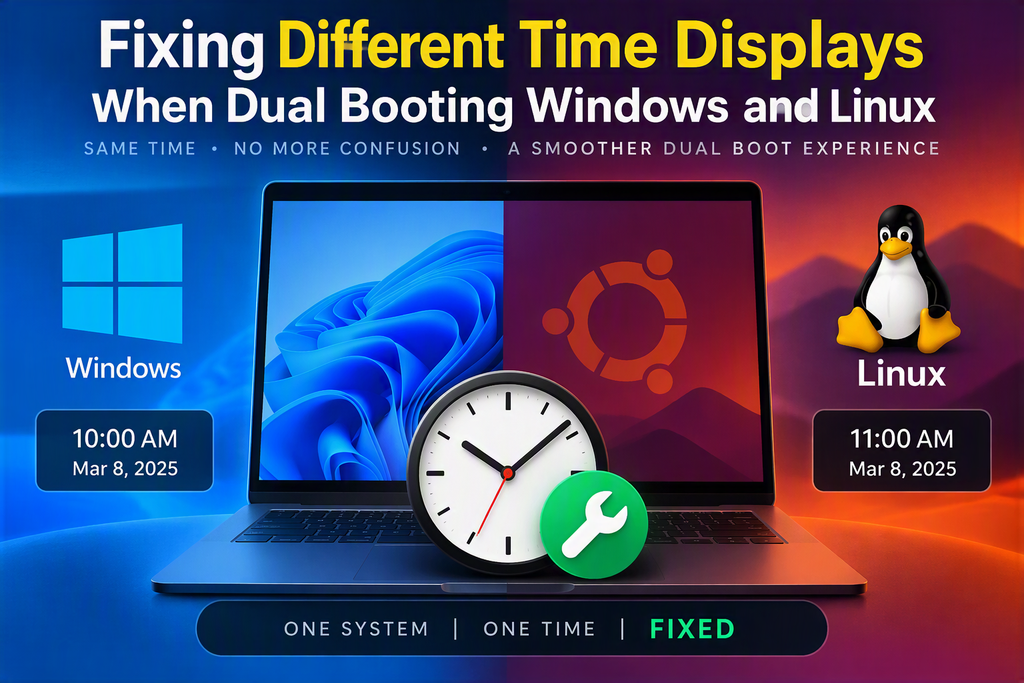
A few days ago, I noticed an annoying issue on one of my dual-boot systems. No matter how many times I corrected the clock in Windows, the problem kept returning whenever I rebooted into Linux and then back into Windows.
If you’ve ever experienced your computer showing different times depending on which operating system you’ve booted into, you’re not alone. Fortunately, there’s a simple fix.
Why Does This Happen?
Your computer keeps track of time using a hardware clock stored on the motherboard. Even when the machine is powered off, this clock continues running thanks to a small coin-cell battery.
The problem appears because Windows and Linux treat this hardware clock differently:
- Windows assumes the hardware clock stores local time.
- Linux typically assumes the hardware clock stores UTC (Coordinated Universal Time).
When you shut down Linux, it writes the time to the hardware clock using UTC. When Windows starts, it reads that same clock expecting local time instead. The result is that one of the operating systems ends up displaying the wrong time.
The Simplest Solution
While it is possible to configure Windows to use UTC, support isn’t always perfect and some third-party applications expect Windows to use local time.
Because of this, the easiest approach is usually to configure Linux to use local time instead.
Making Linux Use Local Time
Most modern Linux distributions that use systemd support this change through the timedatectl command. This includes:
- Ubuntu
- Linux Mint
- Debian
- Fedora
- Red Hat
- Many other modern distributions
Open a terminal and run:
timedatectl set-local-rtc 1 --adjust-system-clock
This tells Linux to store the hardware clock using local time rather than UTC.
Checking the Setting
To verify the change, run:
timedatectl
Look for the following line in the output:
RTC in local TZ: yes
If you see this, Linux is now using local time for the hardware clock.
What About the Warning Message?
You may notice a warning when making this change. In most dual-boot Windows/Linux setups, this isn’t a major concern because Windows handles daylight saving time adjustments correctly.
For many home users, this setting provides the simplest and most reliable solution.
Reverting the Change
If you ever want to switch Linux back to its default behaviour of using UTC, run:
timedatectl set-local-rtc 0 --adjust-system-clock
Final Thoughts
This is one of those small issues that can be surprisingly frustrating until you understand what’s happening behind the scenes. Once you know that Windows and Linux make different assumptions about the motherboard’s hardware clock, the solution becomes straightforward.
A single command is usually all that’s needed to keep both operating systems displaying the correct time and save yourself the annoyance of constantly resetting the clock.